Saturday, February 23, 2019

Getting Information From eBird

Figure 1. Average counts by week on the public eBird checklists of Cackling (blue line) and Canada Geese in ten Colorado counties straddling the I-25 corridor from Larimer and Weld counties south through Pueblo County. Data are from Larimer, Weld, Boulder, Broomfield, Adams, Arapahoe, Jefferson, Douglas, El Paso, and Pueblo counties. In eBird, "weeks" begin on the 1st, 8th, 15th, and 22nd, with the last week of each month incorporating however many days are in the month after the 21st. Thus, the range of time in that last week spans 7.25-9.00 days, depending on the month. Counts of Cackling Goose in the area considered span the range 0-115,000, while counts of Canada Goose span the range 0-20,000. All 366,606 public eBird checklists (as of 23 Feb 2019) from the defined area were used to generate this chart. Click on figures to see larger versions.


While many eBirders know at least the basics of entering their data into the eBird database, I have found that relatively few have much in the way of knowledge about extracting information from the database, such as that presented in Fig. 1, above. That figure shows quite graphically (pardon the pun) that Cackling Goose greatly outnumbers Canada Goose nearly the entire time that the species occurs regularly in the area, a fact that many birders seem not to know. Since these sorts of data products are the entire reason behind eBird's existence, this post illustrates the ease with which anyone may extract such. The results of eBird data mining can assist in understanding of occurrence patterns of birds in many parts of the world.

While occurrence graphs such as that presented above might seem difficult to make, the task is really quite simple, as the eBird output engine does all the heavy lifting. All one needs do is to tell eBird what one wants to see in the way of such data presentations, assuming that the facility exists in eBird. The rest of this post will present a visual step-by-step instruction of the process. Reading these instructions will take much, much longer than the actual output process takes. Note that I include a screen capture of each step in the process, with examples for most steps, of both computer (laptop or desktop) and phone (iOs version only) screens. In all of the figures, the phone example is on the right side (if present). Additionally, pink arrows are included to direct your attention to the next step in the process.

STEP 1


Figure 2. After going to the eBird home page (ebird.org), one will see the important bits as presented in the figure. On a computer, click on the Explore link; on a phone, tap on the menu icon in the upper right and then tap on Explore.

STEP 2

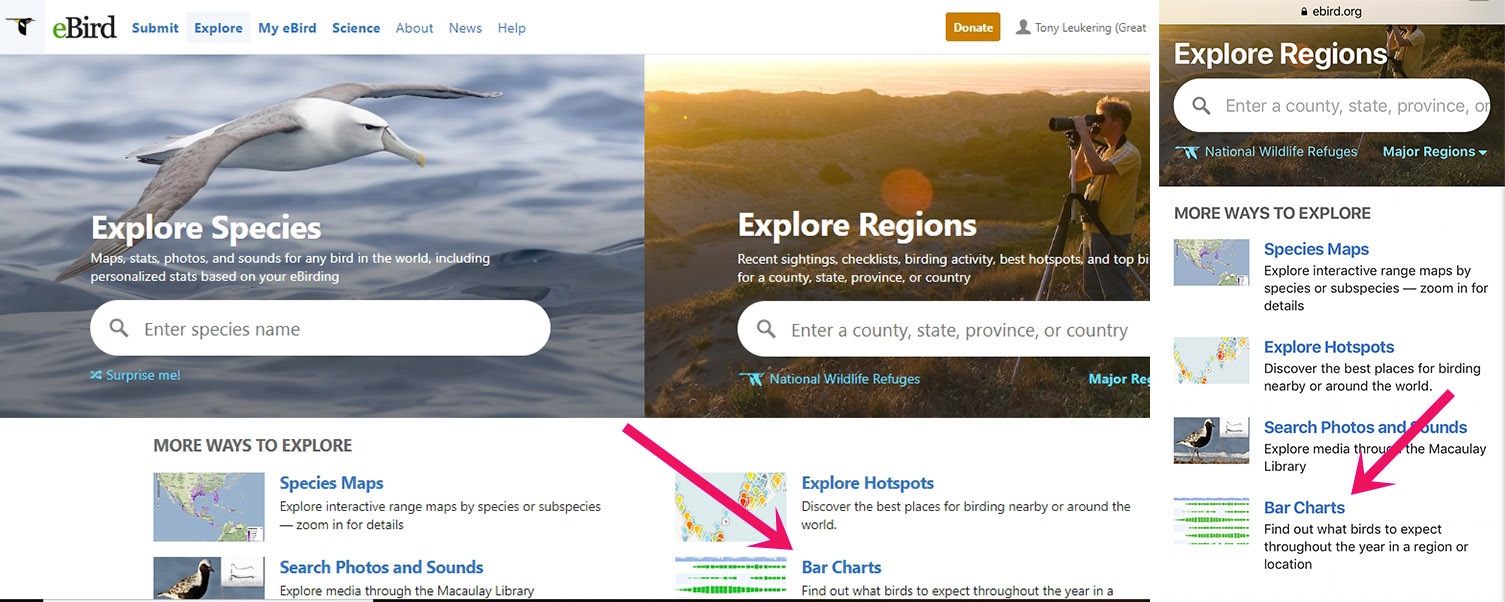
Figure 3. On the Explore page, click/tap on the Bar Charts link. (Say "hi" to Marshall Iliff of eBird HQ.)

STEP 3

Figure 4. Select a country (top arrow) and, if necessary, a state/province (bottom arrow). In the computer version, I have already highlighted the state, which then fills that state name in the right column that allows choosing the entire state or just select areas (you can select as many as 15 counties; this is where I selected the 10 counties that I used in Fig. 1). On a phone, you will have to tap the state/province scroll bar open and find the state/province that you want. Once you have selected the state and which of the four options in the right column, scroll down and click/tap the Continue button. Note: The phone version of this figure shows other options for areas that are not shown in the computer version, but only because they do not fit on a single screen as configured. One of these is the My Locations option. This is where you can get a summary of your yard list, should you want such. (And that is why you should always have a single location that you use for entries from your yard!)


STEP 4

Figure 5. To select counties/provinces on a computer, hold down the Ctrl key and click the individual counties that you want. On a phone, scroll through the counties list and tap each one that you want. Once your selection is complete, click/tap the Continue button.


STEP 5

Figure 6. Note: The computer and phone screens are identical for this step, so I present only one. The result of hitting the previous Continue button is this long-scrolling page showing the occurrence bar charts for every species and non-species entry recorded on public eBird checklists for the area of interest (in this case, the ten counties selected for the graph depicted in Fig. 1). You can see that the selected counties are listed. Careful observers will note that I forgot to include Denver County here and in the county selection for the graph depicted in Fig. 1! Oh, well. The arrow points at the column of graph icons that you will be using in this step. Scroll down to one of the species that you want to investigate and click on that species' graph icon. For this example, we will stay with the goose investigation, so you might want to click on the graph icon for Cackling Goose. Note: All of the actual species entries are hot links, which take you to the respective eBird species page.


STEP 6


Figures 7a and 7b. This page shows three graphs (you might have to scroll if you view the page on your computer in landscape mode) pon clicking on the Cackling Goose graph icon in the previous step. The uppermost graph is a bar graph (in green) and the second is a line graph (in blue). Both show the frequency of detection of Cackling Goose on the public eBird checklists of the region of interest. The bottom graph is a bar graph showing the weekly sample size of public checklists informing on the line graph, above (and recall that those individual weekly sample sizes total the all-time sample size of 366,606 public checklists from the ten counties selected, as noted in Fig. 1). Though your eyes might immediately go to the line graph, both frequency graphs and the sample-size graph are important. However, at this step, what is truly important is presented in Fig. 7b, the arrow pointing to the Change Species button. Click/tap that button.


STEP 7


Figures 8a, 8b, and 8c. Once you click/tap the Change Species button in the previous step, you will see the screen presented in Fig. 8a. If you were actually going to change the species, you would un-click the check box in front of Cackling Goose. However, since we want to add another species to the graph, we need to keep that check in that box and then start typing the name of the species that we want to add, here being Canada Goose. Once you have the species that you want, click/tap the Continue button. Note: A somewhat shorter method of getting to the species that you want in this box (or any other species-selection boxes in eBird), one can use the four-letter code for the species, if you know them or can figure them out.

STEP 8

Figure 9. After clicking the previous step's Continue button, we are back to the screen showing three graphs, as in Step 6. This figure presents only the line graph from that screen; note the key indicating which species is which. (In case you have problems discerning the colors, Cackling Goose is represented by the lower line.)

Now that we've gotten both species that we wanted to investigate into the graphs, it is time to explain the various data-presentation options. The pink arrow in Fig. 9 indicates that of the six data-presentation options, we are looking at the frequency data. This graph indicates that even when both species are present in the region of interest, Canada Goose is reported more often, almost certainly because it is found at more locations in the region. To get to the data presentation that is presented in Fig. 1 (at the top of this post), we will need to click on the Average Count tab (at the opposite end of tabs from the Frequency tab). If you do not understand what a particular tab presents, you can always click on the "What is..." link in the bottom-left of the screen for an explanation. Note: On the Frequency tab, the sample-size graph (the bottom graph) presents, as noted in the caption to Fig. 1, the number of public eBird checklists from the region of interest and throughout the time period of interest. Note: The sample-size checklist on all other tabs presents only the number of checklists on which the individual species was/were recorded (thus does not include zero counts).

Finally, once onto the screen presented in Fig. 9, one can change the time span used, the species, and/or the region of interest. The ease with which you can change the facets makes it easy to compare occurrence patterns of different areas -- say, eastern plains vs. West Slope, different time periods -- say, the 1990s vs. the 2000s, or, as here, a couple species of geese (one can compare as many as five species). You can also get at this facility from the Region option on the Explore tab.

Friday, June 29, 2018

Providing details on flagged high counts of birds

Home-page screen of the current iOs beta version of the eBird application (app). Click on image(s) to see larger versions.

In the beginning, the eBird app required users to provide details for any species that the relevant filter flagged as unusual, either due to the species' rarity or the count being higher than the filter limit, else the checklist would not submit. In 2017, eBird Central decided to dispense with the requirement for details on high counts in order to submit checklists, despite the moaning and gnashing of teeth by many eBird reviewers (including the entire Colorado contingent). This change was incorporated into the then-new Android version of the app and is in beta-testing mode in the iOs version. While both versions of the app still require written details in order to submit reports of rarities, reports from the Android version do not require details for non-zero counts exceeding the filter limit, and the iOs version is heading that way.

Many eBirders have probably rejoiced at this change, but we reviewers really dislike it. That is because a large percentage (though still a minority) of reports in our eBird review queues have no details due to this change. That means that reviewer workload got substantially larger and for very little benefit to eBirders in general. Before the change, something like a simple "estimate" or "counted by 1s" or "counted a portion and extrapolated total" were all that we requested for reports of high counts. The primary reason that reviewers want those details is so that we can be sure that the number reported was the number intended. Even on a phone, it is possible to make a mistake (or series of mistakes) and report unintended numbers.


Because filter limits are kept fairly tight in much of Colorado and Wyoming, reviewers in this region already have a larger task than do many, so this extra workload of having to query observers for details on high counts can be the straw that broke the camel's back. That broken back might result in blanket movement of non-documented reports of counts greater than the filter limit into eBird's non-public data, and none of us -- eBirders or reviewers -- want that. So...


PLEASE REPORT DETAILS OF HOW ANY HIGH COUNTS WERE DERIVED. (Again, see here.)


For those that haven't studied how the new app versions look and act, below are some illustrated examples of what your app can show you and what we, as reviewers, would really like eBirders to do.


Figure 1. iOs beta version app showing a hypothetical checklist. Note that the Rock Pigeon tally is indicated as exceeding the filter limit (which is set at 39). Also note that the Inca Dove entry is of a species that has a filter limit for the date and location of zero or is not on the relevant filter at all (in fact, it is not on the filter, as there are no county records). In order to submit the checklist to eBird, the app will require comments for the Inca Dove. However, it will not require comments on the high count of Rock Pigeons. We repeat:  PLEASE REPORT DETAILS OF HOW ANY HIGH COUNTS WERE DERIVED.


Figure 2. Upon tapping on the Rock Pigeon entry in the checklist on the app (see Fig. 1), one can add the detail that we reviewers would like to see on how the high count was derived. We do not need a novella written, just a simple, brief description of your counting/estimating technique (here, "estimate").

Figure 3. Unlike for the Rock Pigeon high count (Fig. 2), rarities require a bit more text. Minor rarities or those entries of species that are only marginally early or late can be supported by skimpier details, but true rarities, like this Inca Dove, need to be supported by firm details. This example is just barely enough for validation, though the promised photos would obviously help a lot.


Figure 4. We reviewers, all being eBirders ourselves, know what a pain it is to have to type much more than a few words into the comments field. However, assuming that one follows through and provides those promised details and/or photos, simply letting us know that you understand why a species flagged and that you'll get to providing those critical details as soon as you can get to a more-typing-friendly machine serves as a useful placeholder. However, PLEASE PROVIDE THOSE DETAILS AND/OR PHOTOS AT YOUR EARLIEST POSSIBLE CONVENIENCE so that we do not have to spend the time querying you.

[A side note about numbers: If one counts a flock of birds by 10s, one cannot report 362 (even if one counted 360 and then two flew over later), as that number is not divisible by 10 without figures to the right of the decimal. It's kind of difficult to have 0.2 of a live bird. One also cannot "count by 5s, then 10s" and report 365, as one's total must be a multiple of the grossest sample size -- in this case, 10. Think of it like this: Before starting a road trip, you check your car odometer, which reads 26362. Upon arriving at your destination, you check it again and it reads 26398, yet you report to the friend that you are meeting that you drove 36.2 miles. The process of counting in smaller sets of birds is similar.]

Tony Leukering and Scott Somershoe (CO reviewers)

Wednesday, February 14, 2018

Greater Scaup: An eBird problem child

[Click on images to see larger versions.
Immature male Greater Scaup, Cape May Pt., Cape May Co., NJ; 7 January 2012. Photograph by Tony Leukering.]

Greater Scaup is of regular occurrence in our two-state region, but is both over- and under-reported, due to the extreme difficulty that many birders -- even skilled ones -- have at identifying scaup.  Leukering has treated this subject in some detail elsewhere (Leukering 2011).  We strongly recommend reading that paper first, but since you might not, this essay is meant to point out a few factors in scaup identification that are over-looked or ignored by -- or unknown to -- many birders.

We start with some bulleted cautions:

  • If the scaup that you are ogling is foraging; beware!  Head shape is not a useful differentiating feature of foraging scaup.
  • If the scaup that you are ogling has water drops on its back and/or elsewhere; beware!  That bird has recently been foraging; see previous caution.
  • If the scaup that you are ogling does not have bright yellow eyes; beware!  Dull eye color is a sign of immaturity, and head shape in scaup with juvenile head feathering is not a useful differentiating feature.
  • If the scaup that you are ogling is a male that lacks complete adult-like plumage, particularly after December; beware!  Males lacking complete adult-like plumage after December are probably immatures; see previous caution.
  • If the scaup that you are ogling is brown; beware!  The timing of the molt out of juvenile plumage is quite variable across individuals of both species, such that immature males still with juvenile head feathering can be found very deep into winter.  Additionally, eye color may change well ahead of plumage change, such that even scaup with yellow eyes may still hold juvenile head plumage; see previous caution.
  • If the scaup that you are ogling is brown and large and has a slight peak in front of the eye; thin-but-distinct eye rings; thin, pale post-ocular line; and looks like this; beware!  The bird that you are ogling is a female Redhead.
  • If the scaup that you are ogling has an apparently green head; beware!  The iridescent plumage of male scaup is not, WE REPEAT, NOT, a reliable differentiating feature of scaup -- or of any other similarly plumaged species.  Note the head color of these males: 

               November, California

               January, Florida

               January, Colorado [the best of the lot]

Scaup ID has always been difficult, with, perhaps, the majority of birders not being able to consistently ID them correctly.  Even skilled birders have trouble with this duo, so do not be afraid to use the "Greater/Lesser Scaup" entry in eBird.  In fact, we will make it more plain:  Use the "Greater/Lesser Scaup" option unless you are certain of the ID of the scaup (singular or plural) you are ogling.

Okay, one more caution, and then we'll get to the meat of this essay.  Finally!


  • If the scaup that you have ogled is represented in your photos/eBird checklist by a single picture; beware!  Head shape is changeable and ephemeral, and as with identification features, the more of them you have, the better.  The more photos, the more likely that you will have captured the "true" head shape.

  • One of the problems that birders create for themselves concerning scaup ID is not knowing the difference in sizes of various duck species.  For whatever reason or reasons, many or most birders seem to think that diving ducks are large, particularly relative to dabbling ducks.  However, the reverse is true.  Paying attention to neighboring ducks when ogling a scaup and determining the scaup's comparative size is very helpful.  If that scaup is among other "bay ducks" (genus Aythya), size can be quite helpful, as:

    Canvasback > Redhead > Greater Scaup > Ring-necked Duck ≥ Lesser Scaup.

    If that scaup is among dabbling ducks, then:

    Mallard > Northern Pintail > Gadwall ≥ American Wigeon > Northern Shoveler > 
    Greater Scaup > Lesser Scaup ≥ Cinnamon Teal > Blue-winged Teal > Green-winged Teal

    Combining all of these species results in:

    Mallard > Northern Pintail > Gadwall ≥ American Wigeon > Northern Shoveler > Canvasback > Redhead > Greater Scaup > Ring-necked Duck ≥ Lesser Scaup ≥ Cinnamon Teal ≥ Blue-winged Teal > Green-winged Teal

    Of course, the above comparisons are over-simplifications, as I created them from the "average" size values presented in Sibley (2014) [Yes, actually reading the field guides can prove quite useful in bird ID] and the wing-chord values in Pyle (2008).  Unfortunately, there is variation in size in all species, with males averaging larger than females and, at times, adults being larger (at least, bulkier) than immatures.  So, again, determining your mystery scaup's age and, particularly, sex can be critical to slapping the correct ID on the bird, and, below, we present a great example.

    The recent incredible increases in both the number of birders and in the ease with which information about bird occurrences can be shared has exacerbated the problem of mis-identification of scaup.  Additionally, one of those sharing venues -- eBird -- has particularly exacerbated the problem, as anyone can report bird occurrence to eBird, even when the identifications that result in those bird-occurrence data are incorrect.  Thus, the fact that a single birder incorrectly reports a Greater Scaup from a location can create a situation of circular logic about that occurrence, with many other observers visiting that location and also incorrectly reporting that "Greater Scaup."  These sorts of things then take on a life of their own, as few observers then critically examine the bird in question, because "the bird has been reported by others," so one of these scaup must be the Greater.

    This essay is the direct result of one of those situations. Someone (I know not who, and it does not matter) reported a male Greater Scaup at Belmar Park in Jefferson Co., CO, in January.  Others followed, some reporting a Greater Scaup; still more others followed.  Kathy Mihm Dunning, Scott Somershoe, and Tony Leukering, due to eBird-review duties, had seen a number of photos from the location of the purported Greater Scaup, and were sure that the various reports were in error, as none of the photos embedded in eBird checklists provided definitive proof of ID.  In fact, many photos were obviously of Lesser Scaup; some were less-obviously of Lesser Scaup.

    Kathy and Tony visited Belmar Park on 3 February to attempt to solve the problem.  As can be seen in the resultant checklist, they found ten individual scaup.  The number of Lesser Scaup reported on the other 41 checklists that reported scaup from Belmar Park in January and early February 2018 ranged from one to ten.  Greater Scaup were noted on 14 of those checklists, with all but one checklist reporting a single bird.  Thus, it seems unlikely that the "Greater Scaup" in question was/were not present for their visit.  In fact, some of the photos of the purported Greater Scaup were more-than-good enough for us to determine that we saw the same individual birds.  Unfortunately, those birds were Lesser Scaup.  BUT, there was a very interesting brown scaup.  In fact, it was one of the birds depicted in the single checklist that reported brown Greater Scaup.

    When endeavoring to identify a scaup, as with identifying most birds, determining the bird's age and sex are quite helpful when hoping to arrive at a correct ID.  Conversely, if one is not hoping to arrive at a correct ID, then age and sex don't play any useful part.  The primary reason that ageing scaup is critical for species identification is that the head shape of juvenile scaup, particularly that of Lesser, is somewhat to quite different from that of adults.  Yes, the heads of juvenile Lesser Scaup are often fairly rounded.  Here are some examples of immature Lesser Scaup in fall:

    November, El Salvador

    September, Idaho

    September, Idaho [we particularly like the great variety of head shapes depicted in this photo]

    October, Ontario

    Of the Lesser Scaup at Belmar Park on 3 February, there was just a single male wearing complete (or nearly so) adult-like plumage; it is depicted in Figs. 1-2. All other male scaup present were obvious immatures (such as the second bird in Figs. 1-2).


    Figures 1 and 2. Adult male (right) and immature male Lesser Scaup. Note the peaked crowns of both birds, but that the immature's crown is less-peaked. Also note the immature's mix of juvenile and adult-like plumage. Belmar Park, Jefferson Co., CO; 3 February 2018. Photographs by Tony Leukering.

    The only scaup present that caused a slight increase in heartbeat rate was the bird presented in Figs. 3-6 and which provides the aforementioned great example of the usefulness of size comparison when identifying ducks.

    Figure 3. The interesting brown scaup. Note the disheveled plumage on the crown that makes the bird look like it's having a bad-hair day; that plumage is almost certainly juvenile crown plumage, and worn juvenile crown plumage, at that. Also note the handful of grayish feathers present on the sides, which present as whitish streaks. Also note the oddly orange color to the plumage encircling the bill. We do not know what that color means, but it makes for a distinctive scaup. The brown eyes indicate that this bird is an immature. The bits of gray side plumage indicate that this is a male, not, as one might think, a female. Note that it appears quite a bit smaller than the male Northern Shoveler behind it. Finally, note that that male Northern Shoveler's head is purply-blue, not green. Again, the color of iridescent plumage is highly unreliable as an identification feature. Belmar Park, Jefferson Co., CO; 3 February 2018. Photograph by Kathy Mihm Dunning.


    Figure 4. The interesting brown scaup. Note the bird's apparently blocky head, non-peaked crown, and steep forehead. Part of that appearance is due to ephemeral posture, part due to retained juvenile head plumage. Since by this time that juvenal head plumage has been adorning the bird for, perhaps, 7-8 months, it is getting quite worn. That means that the feathers are becoming shorter, which may account for a few of the apparent Greater-like head features presented in this photo. This photo is also highly relevant to the above caution about using a single photo to describe your scaup. Belmar Park, Jefferson Co., CO; 3 February 2018. Photograph by Kathy Mihm Dunning.


    Figure 5. The interesting brown scaup. Note the bird's relatively narrow head and shallow angle created by jowls that do not bulge much (compare with birds on back cover comparison in this essay). Belmar Park, Jefferson Co., CO; 3 February 2018. Photograph by Kathy Mihm Dunning.


    Figure 6. The interesting brown scaup. Note that the scaup looks noticeably smaller than even a female Northern Shoveler. Belmar Park, Jefferson Co., CO; 3 February 2018. Photograph by Kathy Mihm Dunning.

    If you've slogged all the way through the essay: Thanks!  If you've skipped ahead, the solution set to the murder is:  Colonel Mustard, in the kitchen, with the wrench.

    Literature Cited

    Leukering, T. 2011. Greater and Lesser Scaup: Beyond crown shape. Colorado Birds 45:75-78.

    Pyle, P. 2008. Identification Guide to North American Birds, part II. Slate Creek Press, Bolinas, CA.

    Sibley, D. A. 2014. The Sibley Guide to Birds, 2nd ed. Alfred A. Knopf, New York.


    Tony Leukering, Steve Mlodinow, Kathy Mihm Dunning, and Scott Somershoe (half of the Colorado eBird review team)


    Friday, January 26, 2018

    The "Show Rarities" box

    As an eBird reviewer, I am continually surprised how few eBirders know about the "Show Rarities" box.  Except for those few eBirders that look only at the birds at their feeders and who never host (knowingly or otherwise) a local rarity at those feeders, all eBirders will eventually run across something that is considered locally rare.  That is, the entry gets flagged by the relevant eBird filter.  This is particularly true for those folks that don't eBird regularly, but occasionally chase interesting stakeouts, such as this year's crop of Snowy Owls.

    The result of this ignorance of a basic part of eBird's infrastructure is that such observers usually wind up putting an entry for the chased Snowy Owl, or Red-breasted Sapsucker, or Brambling into one or another of the various "spuh" categories.  In fact, this winter's Snowy Owl movement is really obvious anytime that I go to look at the photos entered into the "owl sp." entry, because the observer did not know about the "Show Rarities" box.  Since the eBird program is very light on instruction as to how to use eBird and a lot of people hate "reading the manual," it is left to reviewers to explain to observers (or, in many cases, not) how to get those various rarities into the species entry, rather than letting them languish in an unidentified category (which serves almost no one well).

    To find the "Show Rarities" box, one must be in the process of submitting a checklist directly via the Internet (that is, NOT via the eBird app) OR be editing an existing checklist (which one cannot do from the eBird app; at least, not yet).  The "Show Rarities" box is on the right side of the checklist-view page, as indicated here (click on images to see larger versions).  However, to get to the checklist-view page, you will have had to click on the "Edit Species List" button immediately after you opened the relevant checklist (Fig. 1).

    Figure 1. This is the page that you see when you open an existing checklist (that is, one that you are not currently entering originally). The arrow points out the button on which to click to get to the checklist-view page (Fig. 2).


    Figure 2. The "Show Rarities" box is shown by the arrow.

    If the entry for which you are looking is not presented in the checklist, look at that check box in front of "Show Rarities" to make sure that it is checked (it is not checked in the above graphic).  If that box is unchecked, simply click on the box and the check-mark will be added.

    However, if that check-box is already clicked and the entry for which you search is still not present, look above the "Show Rarities" box for the "Add species" feature.  Clicking on "Add Species" will open a dialog box that will allow you to enter the entry for which you search, whether that is "Picoides sp.," "Wandering Albatross,", or, as in Fig. 3, "Great Gray Owl."


    Figure 3. Once the "Add species" dialog box opens, simply start typing in the name of the entry.

    In the example provided in Fig. 3, I have started typing "Great Gray Owl" and have not gotten to the owl part, but the option that I want is the first one on the list. Simply highlight that option (here, it is in blue) and click on it to move that option into the dialog box.  Once that ation is completed, eBird will give you the screen presented in Fig. 4.


    Figure 4. After filling in the dialog box in the previous step, this screen is the result.

    Notice that eBird has filled in the number box, assuming that an observation that requires adding a species to the checklists -- that is, one that is not even on the relevant filter, would be rare enough that the likelihood of seeing more than one is low.  If, however, one does wish to report more than one, simply highlight the number (or put the cursor to the right of the number and press the 'backspace' key) and type in the number that you wish to report.  Then, because this entry is considered locally rare, you will need to provide details in the "Details" box.  Of course, if you're simply trying to add an unidentified category (one of the "... sp." entries, called "spuhs" by eBird folks), then you'll need to just add a short note in the "Details" box as to why you're using it, and that that entry might need to be added to the relevant filter.  Once you have completed those steps, simply click on the big, green "Save" button, and you can continue on your merry way.

    Wednesday, January 24, 2018

    The "Change Species" button

    For most of eBird's history, if one made a mistake and entered data in the wrong entry, to fix it, one needed to put all of the relevant information (number of individuals and any data on age/sex, etc.) into the intended entry and then delete the mistaken entry.  This was a bit annoying, but particularly so if one had uploaded photos into that entry.  One might have lost track of those photos, but even if one hadn't, just finding them and re-uploading was another minor pain.

    Late in 2017, eBird introduced a great new checklist-editing tool: the "Change Species" button.  This new button allows quick-and-easy transfer of data and embedded media from one entry to another, as long as there are not already data in the target species entry.  This post is meant as a how-to essay on the mechanics of using the "Change Species" button.

    After opening the checklist in question, click on the "Edit Species List" button (click on images to see larger versions):


    After clicking on that button, eBird will then provide you access to the various entries in the bird list:


    In the above screen grab, we can see that I have entered the number of birds and a photo into the "longspur sp." entry, an entry that I had used as a place-holder until I could go through my photos and figure out a reasonable ratio of the longspur species present (Lapland and McCown's).  So, now that I've done that, I can move the data AND the photo into the McCown's Longspur entry very easily by clicking on the "Change Species" button visible to the right of the species/category name.  [If you want to move only the media, click on the "Only my media" radial button.]  Once I click that button, I see this:


    Since I want to move the number of individuals AND any other data or photos, I make sure that the "Entire observation" radial button is highlighted (rather than the "Only my media" radial button).  Then I start typing into the blue ovaled box under "Change species identification to" the name of the species into which entry I wish to move the information.  Once I start typing in the name, eBird starts giving me options that match the set of letters typed to that point.  Because there is only one bird species in the world named after Mr. McCown, once I've gotten that far, that species is the only one offered:


    However, for other species, you may have a couple to many options for species, depending upon how far into the name you've typed.  You can scroll down the list and highlight the entry that you want and click on it, which will then show in that ovaled box:


    Then, make sure that everything presented is correct and, if so, click on the green "Change" button, which will give you this screen:


    Then, go through the checklist and make sure that everything is copasetic (or hunky-dory or the way that you want it) and click on the big, green "Save" button.

    You're done.  The process actually takes much less time than does reading this blog post.